Before you start
An eSIM is a SIM card that lives in your phone’s software instead of a plastic tray. You download it, and from then on it behaves like any other line: it connects to networks, sits next to your regular SIM, and can be switched on and off whenever you like.
The whole process takes about 10 minutes. You will need:
- Your SpendCrypto order page — the QR code and activation code are on it, and we also emailed it to you.
- A phone that supports eSIM and is not locked to a carrier. The next two sections show how to check both.
- A stable internet connection for the download. Wi‑Fi is ideal.
Your eSIM installs once
As soon as the QR code or activation code is used on a device it stops working anywhere else, and a deleted eSIM cannot be downloaded again. Install it on the phone you will actually travel with, and do not remove it until you are done.
Check your phone supports eSIM
Most flagship Android phones from 2020 onwards have an eSIM, but support depends on the exact model and sometimes on the region or carrier it was sold for. Here is how to check on the phone itself.
Menu names vary by brand
These steps show the Samsung Galaxy wording with the Google Pixel equivalent in brackets. Other brands use similar names — look for anything mentioning SIM, eSIM or mobile network.
Samsung Galaxy
-
Open Settings and tap Connections.
-
Tap SIM manager.
-
If you see Add eSIM under the eSIMs heading, your phone supports it.
Google Pixel
-
Open Settings and tap Network & internet.
-
Tap the + next to SIMs.
-
If you are offered Download a SIM instead?, your Pixel supports eSIM.
Any other Android phone
-
Open the Phone app and dial *#06#. The code runs as soon as you type the last character.
-
Look for an EID — a 32‑digit number shown next to your IMEI. If it is there, the phone has an eSIM chip.
An EID means the hardware is there, but some carriers ship phones with eSIM switched off. If the Add eSIM option is missing despite an EID, ask the carrier you bought the phone from.
Check your phone is unlocked
A carrier‑locked phone will refuse eSIMs from anyone but that carrier. Unlike iOS, Android has no lock status in Settings, so you have to check another way.
Two ways to find out
-
If you bought the phone outright from a shop or the manufacturer, it is almost certainly unlocked. If it came with a carrier contract or instalment plan, check the contract or ask the carrier — they can confirm and, once the contract is paid off, unlock it.
-
For a quick practical test, insert a SIM card from a different carrier. If the phone gets signal with it, it is unlocked.
Install the eSIM
Your order page gives you the same eSIM in two forms: a QR code and a plain‑text activation code. Which one you use comes down to what is in front of you. If you can open the order page on a laptop, a tablet or someone else’s phone, point your camera at the QR code and follow the prompts. If the phone you are setting up is the only screen available, copy the activation code from the order page and paste it in instead — or, on many newer phones, let the scanner read a screenshot of the QR code. Every route is covered below.
Whichever you choose, install the eSIM before you travel and leave it switched off until you arrive. Downloading it does not start the plan; turning the line on at your destination does.
The eSIM is downloaded over the internet, so stay on Wi‑Fi or another working connection until the install finishes.
Your eSIM installs once
As soon as the QR code or activation code is used on a device it stops working anywhere else, and a deleted eSIM cannot be downloaded again. Install it on the phone you will actually travel with, and do not remove it until you are done.
Menu names vary by brand
These steps show the Samsung Galaxy wording with the Google Pixel equivalent in brackets. Other brands use similar names — look for anything mentioning SIM, eSIM or mobile network.
Scan the QR code
Best when you can show the code on another screen
-
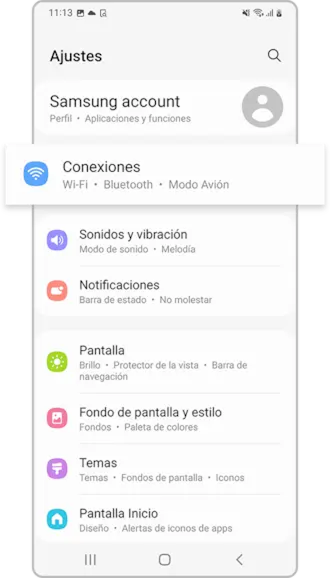
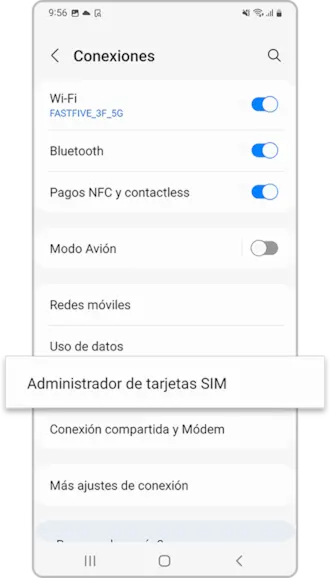
Open Settings › Connections › SIM manager (Pixel: Settings › Network & internet › SIMs).
-
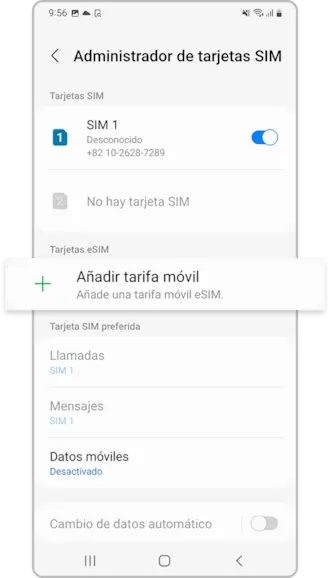
Tap Add eSIM (Pixel: tap +, then Download a SIM instead?).
-
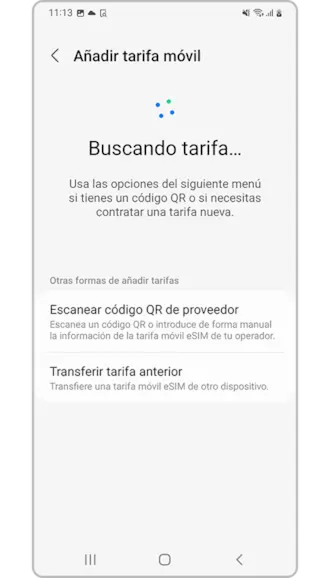
The phone looks for an eSIM from your current carrier and reports No eSIMs found. Tap Scan QR code from service provider (Pixel: Next).
-
Point the camera at the QR code on your SpendCrypto order page, shown on another device.
-
Confirm when the phone asks to add the eSIM — on Samsung the prompt is Add Data eSIM? — then tap Done once it finishes.
-
The new eSIM appears in your SIM list. Your home SIM keeps handling mobile data until you change it in the next section. To keep the eSIM silent until you travel, turn its toggle off in SIM manager.
Only one device? On Samsung, the scanner screen has a gallery button — take a screenshot of the QR code first and pick it from there. On other phones use the manual method below.
Paste the activation code
For when scanning is not an option
Android takes the whole code in a single field. Copy it from your order page under Copy & paste — it starts with LPA:1$.
-
Open Settings › Connections › SIM manager (Pixel: Settings › Network & internet › SIMs) and tap Add eSIM.
-
Tap Scan QR code from service provider (Pixel: Next) to open the scanner.
-
Below the camera view, tap Enter activation code (Pixel: tap Need help?, then Enter it manually).
-
Paste the full activation code and tap Connect (Pixel: Continue).
-
Confirm when the phone asks to add the eSIM, then tap Done.
Turn it on when you land
Your plan’s clock starts when you switch the eSIM line on and it connects to a network at your destination — so keep it off until you land, then follow these steps.
How do I know it is working?
Once the line is on, a second signal indicator for it appears in the status bar. Open a web page with Wi‑Fi turned off to confirm data is flowing.
Switch to the eSIM for data and enable roaming
-
Open Settings › Connections › SIM manager (Pixel: Settings › Network & internet › SIMs).
-
Make sure the eSIM’s toggle is on.
-
Under Preferred SIMs, tap Mobile data and choose the eSIM (Pixel: open the eSIM and switch on Mobile data). Tap Change if asked to confirm.
-
Go to Settings › Connections › Mobile networks (Pixel: Settings › Network & internet › SIMs, then tap the eSIM).
-
Switch on Data roaming (Pixel: Roaming). Travel eSIMs work by roaming on local networks — without this you will see signal but get no internet.
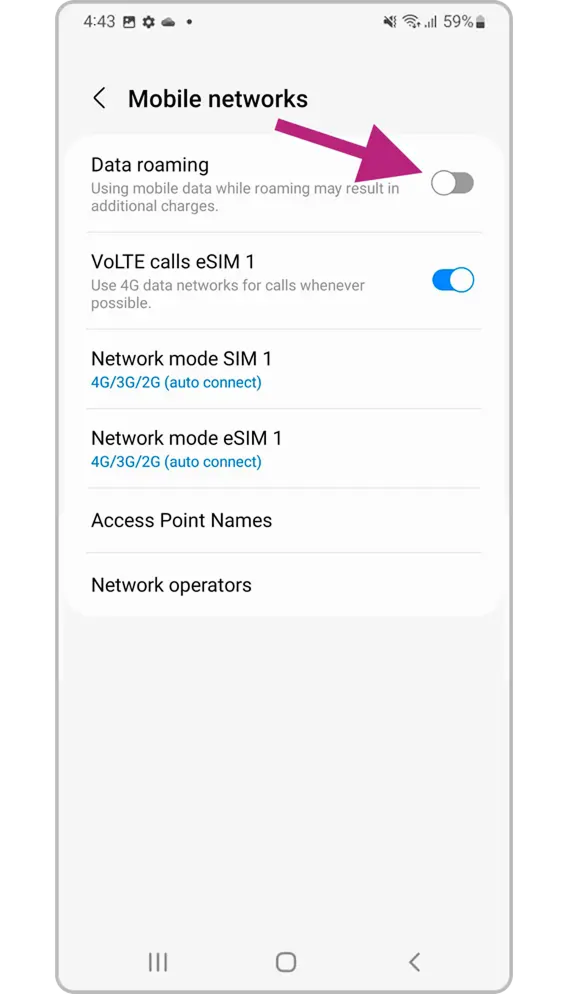
Leave Calls and Messages set to your home SIM so you keep receiving them on your usual number. To avoid roaming charges on that SIM, turn its own data roaming off or switch it off entirely while you travel.
Pick a network manually
Your phone normally picks the strongest local network on its own. If you are stuck with a weak signal or you have bars but no data, choosing the network yourself often fixes it.
Choose the network yourself
-
Open Settings › Connections › Mobile networks (Pixel: Settings › Network & internet › SIMs, then tap the eSIM).
-
Tap Network operators (Pixel: find Automatically select network).
-
If you have two SIMs, pick the eSIM using the tabs at the bottom of the screen.
-
Turn off Select automatically, wait for the scan to finish, and tap the network you want. Confirm any pop‑up that appears. The networks your plan supports are listed on its product page.
Check the APN
Our eSIMs configure their APN (Access Point Name) automatically, so you should not need to touch this. If a support agent asks you to check it, this is where it lives.
Only the APN field matters. Leave username, password and every other field empty unless our support team tells you otherwise.
Find the APN settings
-
Open Settings › Connections › Mobile networks (Pixel: Settings › Network & internet › SIMs, then tap the eSIM).
-
Tap Access Point Names.
-
Check the selected APN matches your plan. If you need to add one, tap + (or Add), fill in only the APN field, save it, and select it. If you are unsure of the value, contact our support team.
Remove the eSIM
A removed eSIM cannot be reinstalled, so only delete it once you are sure you are done with it — for example when:
- You do not plan to use it again.
- The data is used up or the plan has expired.
- You are installing a new eSIM for the same destination and your phone is out of eSIM slots.
Travelling again soon?
You do not have to delete anything. Switch the line off instead and the eSIM stays installed, silent, and ready for next time.
Delete the eSIM
-
Open Settings › Connections › SIM manager (Pixel: Settings › Network & internet › SIMs).
-
Tap the eSIM you want to remove.
-
Tap Remove (Pixel: Erase SIM) and confirm.
Troubleshooting
The errors people run into most often, and what they actually mean.
Android shows this for a few different reasons. Check each one:
- The phone is locked to a carrier. It will refuse eSIMs from anyone else until the carrier unlocks it.
- Too many eSIMs stored. Phones hold a limited number of profiles. Delete old ones that have expired or have no data left.
- The eSIM was already installed. Each eSIM installs once; it cannot be added to a second phone or re‑added after being deleted.
- The connection dropped during the download. Move closer to your Wi‑Fi router and try again.
- Mobile data is off. Turn it on for your current SIM and retry.